


What Does Claude Remember?
Memory, Projects, and Cowork each handle context differently. This guide explains exactly what Claude remembers, what it forgets, and how to set things up so you never have to repeat yourself.
The Problem Every Claude User Hits
You spend 20 minutes explaining to Claude who you are, what your company does, which spend categories you manage, and how you want your reports formatted. Claude delivers a great result. Then you open a new chat the next day — and Claude has no idea who you are.
This is the single biggest frustration people have with AI tools. But Claude actually has several systems to solve this. The issue is that most people don't know they exist, or they confuse what each one does.
This guide explains the three layers of Claude's "brain": Memory (automatic, always on), Projects (organised workspaces with persistent context), and Cowork sessions (powerful but temporary). Once you understand how they interact, you'll set Claude up once and never re-explain your context again.
Comparison at a Glance
What persists where? This table gives you the full picture.
| Memory | Projects | Cowork Session | |
|---|---|---|---|
| What is it? | Automatic summary Claude builds from your conversations. Learns who you are over time. | A dedicated workspace with its own files, instructions, and memory — scoped to a specific workstream. | A single work session where Claude can read files, create deliverables, and use tools. Powerful, but temporary. |
| Persists between sessions? | Yes — always on, updates every 24 hours | Yes — instructions, files, and project memory persist permanently | No — conversation context is lost when you close the session |
| What does Claude remember? | Your role, company, preferences, working style, technical choices, recurring topics | Everything in the project: instructions, context files, folders, and what it learned from previous tasks in that project | Everything within the current conversation — files read, tools used, all messages. But only during that session. |
| What gets forgotten? | Specific details, exact numbers, one-off requests. Memory captures patterns, not transcripts. | Nothing — as long as it's in the project. But project memory doesn't leak into other projects. | Everything — once you start a new session, the slate is clean. Unless you're in a Project (then project memory carries over). |
| Scope | Global — applies to all non-project chats | Project-only — isolated per project | Session-only — within one conversation |
| Setup required? | None — automatic. Just enable it in Settings → Capabilities. | Yes — create a project, add instructions and context files. | None — just start a Cowork task. But for persistence, use a Project. |
| Best for | Personal preferences, role context, recurring patterns that apply everywhere | Specific workstreams: "IT Category", "Q3 Sourcing", "Contract Reviews" | One-off complex tasks: "Build this presentation", "Analyse this file" |
| Available on | Free, Pro, Max, Team, Enterprise | Pro, Max, Team, Enterprise (Cowork Projects: Max+) | Max, Team, Enterprise |
Deep Dive: The Three Layers
Let's look at each system in detail — what it does, how it works, and how to get the most out of it for procurement.
Memory
Memory is Claude's automatic learning system. It runs in the background, reading your conversations and building a summary of who you are, what you do, and how you like to work. Think of it as Claude quietly taking notes about you over time.
How it works: Every 24 hours, Claude synthesises your recent conversations into an updated "memory summary." This summary is loaded at the start of every new chat, so Claude knows your context before you say a word.
- Your role ("I'm a Category Manager at Acme Corp")
- Your preferences ("I always want reports in EUR, with metric units")
- Your working style ("I prefer concise bullet points over long paragraphs")
- Recurring topics ("I frequently work on MRO and logistics categories")
- Technical choices ("I use SAP Ariba and Coupa")
- Specific numbers from last week's spend report
- The exact supplier names from yesterday's bid comparison
- Details from incognito chats (deliberately excluded)
- Full file contents you uploaded in previous sessions
In your first few conversations with Claude, be explicit about who you are: "I'm the CPO at a mid-size manufacturing company. My team manages €50M annual spend across 12 categories. I prefer outputs in .docx format with executive summaries." Claude will absorb this into its memory and apply it to every future chat — you'll never need to say it again.
Projects
Projects are dedicated workspaces where everything stays put. They're the answer to "I wish Claude remembered what we worked on last week." Within a project, Claude has permanent access to your instructions, files, and everything it learned from previous tasks.
How it works: When you create a project, you give it a name, connect a folder on your computer, and optionally write instructions. Every time you open that project, Claude loads all of this context automatically. It's like handing Claude a briefing document at the start of every session.
The key difference from Memory: Memory is global — it applies to all your chats. Projects are isolated — what Claude learns in your "IT Hardware" project stays there and doesn't influence your "Logistics" project. This is intentional. You don't want your logistics context contaminating your IT spend analysis.
- Project instructions ("Always use our 5-point scoring matrix")
- Context files (templates, policies, category data)
- What Claude learned from previous tasks in this project
- Connected folder contents (Claude can read files in the project folder)
- Scheduled tasks attached to the project
- Context from other projects (deliberately isolated)
- Standalone chat history outside the project
- The exact conversation text from last session (but it remembers key learnings)
Create separate projects for your main workstreams. For example: "Q3 Category Reviews" (with your review template, scoring criteria, and last quarter's data), "Supplier Onboarding" (with your qualification checklist and policy documents), and "Monthly Reporting" (with your reporting template and KPI definitions). Each project becomes a self-contained workspace where Claude knows exactly how you work.
Cowork Sessions
A Cowork session is where Claude does its most powerful work — reading files, creating spreadsheets, building presentations, connecting to tools. But here's the catch: the conversation itself is temporary. When you close the session, that conversational context is gone.
How it works: During a session, Claude holds everything in its "context window" — every message you've sent, every file it has read, every result from every tool it used. This is Claude's active working memory. It's deep and detailed, but it only lasts as long as the session is open.
The critical distinction: Cowork is a mode, not a memory system. By itself, a standalone Cowork session forgets everything when you close it. But if you run a Cowork session inside a Project, the project's memory system kicks in — and key learnings persist for next time.
- Everything within the current session — full conversation, files, tool results
- Multi-step task context ("First you did the spend analysis, then you created the chart")
- Files it created (saved to your folder — the files persist even if the conversation doesn't)
- The conversation after you close the session
- What tools it used or what files it read (unless you're in a Project)
- Your preferences (unless Memory or Project instructions provide them)
Always run Cowork tasks inside a Project. A standalone Cowork session is a one-time thing — Claude won't remember it next time. But a Cowork session inside a Project combines the best of both worlds: the power of Cowork's tools and file access, plus the persistence of Project memory. This is the setup that makes Claude feel like a real team member who remembers your work.
How the Three Layers Work Together
Memory, Projects, and Cowork aren't competing systems — they're layers that stack on top of each other.
Memory
Your role, preferences,
working style
Project Instructions
Category context, templates,
scoring criteria, rules
Project Memory
Learnings from previous
tasks in this project
Cowork Session Context
Current conversation, files
read, tools used, outputs
Full Context
Claude knows who you are, what this
project needs, what it learned last time,
and what you're asking right now.
When all three layers are active, Claude operates with remarkably deep context. It knows your general preferences (Memory), understands this specific workstream (Project), and is fully engaged with the current task (Cowork session). This is the ideal setup for procurement work.
You're the Head of Procurement at a food manufacturer. You open your "Packaging Category" project and start a Cowork session. Claude already knows:
From Memory: You're the HoP, your company's fiscal year is Jan-Dec, you prefer concise reports in EUR.
From Project: This is the packaging category, annual spend is €8M, you have 6 key suppliers, your renewal cycle is Q4, and last month you asked Claude to flag any suppliers with delivery scores below 3.5.
From this session: You just uploaded a new file with Q2 delivery data.
You type: "Update the supplier scorecard with this data." Claude knows exactly what to do — no re-explaining needed.
Set It Up in 10 Minutes
Follow these steps once. Then Claude will know your context from every future conversation.
Enable Memory
Go to Settings → Capabilities and make sure Memory is turned on. This is usually on by default, but it's worth checking. From now on, Claude will automatically learn from your conversations.
Settings → Capabilities → MemorySeed Your Memory with a "Who I Am" Chat
Start a new conversation and tell Claude everything it needs to know about you. Your role, company, industry, team size, spend under management, preferred tools, and output preferences. Claude will absorb this into its global memory within 24 hours.
Any new chat → Tell Claude about yourselfCreate Your First Project
In Claude Desktop, click "Projects" in the left sidebar and create a new project. Name it after your main workstream (e.g., "Q3 Category Reviews"). Select a folder on your computer where you keep the relevant files.
Left sidebar → Projects → Create NewAdd Project Instructions
In your project settings, write clear instructions for Claude. Include: the category or workstream, key data points (budget, suppliers, timeline), templates or formats to use, and any rules or constraints. These instructions load automatically every time you open the project.
Project → Settings → InstructionsRun Cowork Tasks Inside Your Project
When you need to create a deliverable, always do it from within the project — not from a standalone Cowork session. This way, Claude has your project context and will remember key learnings for next time.
Open Project → Start a new taskFive steps, ten minutes. From now on, every time you open Claude, it knows who you are (Memory). Every time you open a project, it knows the workstream (Project). And every time you run a task, it delivers work that builds on everything before. No more re-explaining.
Common Scenarios
"Should I use Chat, Cowork, or a Project for this?" Here's a quick decision guide.
"What's a typical SLA for cleaning services contracts?"
Quick factual question — no files, no deliverables. A simple chat is all you need. Claude's Memory already knows your industry context, so the answer will be relevant to your situation.
"Help me rephrase this email to a supplier who missed a deadline."
Short, one-off task. Chat is perfect. Memory knows your communication style, so Claude will match your tone automatically.
"Analyse this CSV file and tell me the top 10 suppliers by spend."
Needs file access and analysis, but it's a one-time job. A standalone Cowork session works fine — Claude reads the file, does the analysis, and gives you the result. No need for persistent context.
"Build this month's category review. Use the same format as last month."
This is where Projects shine. Claude already has your template, scoring criteria, and category context from previous sessions. Open the project, upload the new data, and Claude delivers a review that's consistent with your established format.
"We have a new supplier evaluation next week. Score them against our standard matrix."
Your project already contains the scoring matrix, weighting criteria, and results from previous evaluations. Claude applies the same methodology consistently — no risk of forgetting a criterion or changing the scoring approach between evaluations.
"Track our savings pipeline — I'll update it every week."
Set this up as a project with a scheduled task. Every week, Claude checks your savings tracker, updates the status, and flags any initiatives that are falling behind. The project remembers the full history, so you get trend analysis for free.
Common Pitfalls to Avoid
Now that you know how the system works, here are the mistakes to watch out for.
Using standalone Cowork for recurring work
If you're doing the same type of analysis every week — spend reports, supplier reviews, contract tracking — always use a Project. Standalone sessions are for one-time jobs. For anything recurring, a Project means Claude improves every iteration because it remembers what worked and what didn't.
Expecting Memory to remember exact details
Memory captures patterns and preferences, not specific data points. It will remember that you work in procurement at a manufacturing company, but it won't remember that Supplier X quoted €142,500 for that IT server replacement last Tuesday. For specific data, use Project context files or re-upload the file.
Putting everything in one giant Project
Resist the urge to create one "Procurement" project. The power of Projects is isolation — what Claude learns about your IT category shouldn't influence your logistics analysis. Create separate projects for separate workstreams. Think of it like having separate folders on your desk.
Forgetting to write Project Instructions
A project without instructions is like a new hire without a briefing. Take 5 minutes to write clear instructions: what this project is about, what rules to follow, what formats to use. This is the highest-ROI thing you can do to improve Claude's output quality.
Quick Decision Flowchart
Not sure what to use? Start at the top and follow the flow.
AI Fundamentals for procurement
Get Your Procurement Team AI-Ready
Some of your team members already use AI. Others barely started. This program trains AI skills for everyone within 21 days. Many procurement teams are seeing massive results. Are you?
✓ Team-wide AI adoption in 21 days
✓ Built for real procurement tasks

Talk to a procurement AI specialist


Procurement's AI Opportunity is Now
Procurement leaders, you have a clear responsibility: you have to lead the AI transformation. AI is not a hype. It is no longer optional. It is a must-have skill for excelling procurement teams. Equip your team with the skills they need to extract the maximum from AI.
Teams that invest now will gain a strategic advantage, future-proof their operations, and drive real impact value in a fast-changing business landscape.

“If you’re not using this technology, you’re not going to be relevant compared to your peer groups and your competitors… Adopt it, and adopt it fast.”
Eric Schmidt, Former CEO Google
%
of executives say AI adoption is essential to stay competitive
%
expected productivity gains from leveraging AI
For Procurement Teams & Procurement Leaders
Short, intensive programs designed to set procurement teams and leaders up for success in the AI era. Developed and delivered by procurement experts who are leading the adoption of AI; built for procurement, by procurement.
AI Fundamentals For Your Team
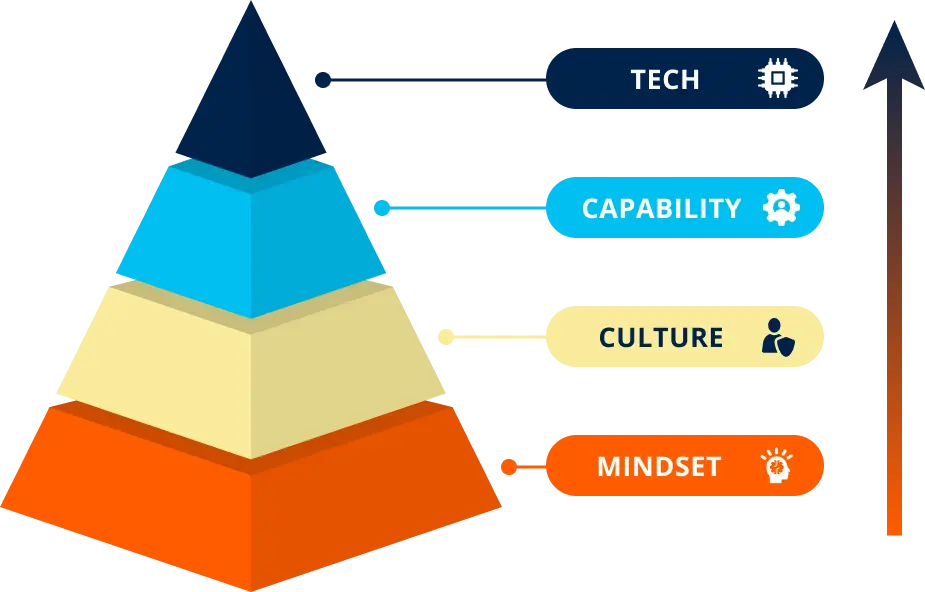
Build the mindset, culture, and capabilities to start unlocking real AI impact, fast!
📚 Immersive Learning
Live expert sessions + self-paced modules for procurement teams.
📅 21-Day Program
Flexible, high-impact AI training tailored to your goals.
🌍 Real Examples
Apply AI to sourcing, contracts, and supplier management.
📈 AI Progress Tracker
Benchmark and measure ROI with clear and accurate metrics.
🤝 Hands-On Projects
Encourage practical use and secure ongoing advancement.
💬 Expert Access
Monthly Q&A with AI and procurement experts to solve your problems.
AI Fundamentals For Procurement Leaders
Align your team on an AI vision and build a strategic roadmap for procurement transformation.
📅 21-Day Program
Focused, high-impact training to accelerate AI usage in your team.
🌍 Real Examples
Learn from real examples of procurement leaders leading the AI-way
💬 Expert Access
Monthly Q&A with AI and procurement experts to solve your problems.
🎯 Leaders Aligned
Unify your team with a shared understanding of AI's role in procurement.
📚 Immersive Learning
Live expert sessions + self-paced modules for procurement leaders.
📍 Actionable Roadmap
Leave with a clear plan to implement AI in your procurement process
Succeeding in AI through Talent
Mastering AI isn't about using the newest tool
Winning with AI requires investing in people, not just tools.
We see many people caring too much about using the newest tool, but they are utilizing only 10% of what is possible.
Using the newest tools is great, but actually knowing how to use them is key.
Leading procurement teams adopt a structured approach to change, integrating talent and technology to transform their function into an AI-driven powerhouse.
Program Overview For Your Team
Program Overview for Procurement Leaders
Meet your instructors

Marijn Overvest
Procurement Thought Leader & AI Expert

Ralph De Groot
Senior Learning Consultant & AI Expert
SUPPORT
FAQs
Have more questions? Get in touch with one of our sales consultants. Book a demo for further questions.
How do I enroll my team?
Schedule a demo call with our team. You can book a consultation directly on their calendar or reach out to us at [email protected]. We'll discuss timelines and get your team on board!
How much time does this require?
The leadership program can be finished within 5-6 hours.
The program for your team can also be finished within 5-6 hours.
If you decide to also participate in the optional modules that cover AI agent building, this will take another 5-6 hours.
Need help choosing the right pace? Discuss your team’s goals and timeline with one of our Procurement Learning Specialists in a free discovery call.
Is there a fixed schedule?
No. Your dedicated Procurement Learning Consultant will work with you during onboarding to:
- Agree on a tailored timeline
- Lock in dates for the kick-off, live sessions, and graduation/demo day
- Define progress checkpoints to keep learners on track
Before each live session, participants should complete a set portion of the self-paced modules, ensuring productive, focused discussions.
This structured yet flexible approach keeps teams aligned while accommodating procurement professionals’ busy schedules.
Is there a live learning component?
Yes!
This program comes with a kickoff and a 2 live Q&A sessions to solve your AI problems in procurement.
What type of support can we expect?
During the pre-enrollment process, our procurement specialists will guide your decision-making and address all your questions. You can reach them by email or schedule a quick consultation call whenever needed.
Once enrolled, you'll be assigned a dedicated Procurement Learning Consultant who will:
-
Serve as your single point of contact throughout the program
-
Coordinate all logistics including kickoff, scheduling, and live sessions
-
Onboard your procurement team and handle any program-related needs
-
Work closely with you to maximize the impact on your team's procurement capabilities
Client Success Stories
NEXT STEP
Program Overview + Price Quote
Ready to upskill your procurement team with critical AI skills?
Request a price quote and the program overview using the form, or reach out to us directly if you'd like to discuss what's right for your team.
Click here to grab a slot in my calendar. Talk soon!

Pim Herremans 
Get Price Quote
Get Price Quote