4.9 rating based on 350+ reviews
Procurement Tactics — Reference Guide

Claude Desktop & Cowork
Cheatsheet

Every shortcut, command, and feature you need to work faster with Claude — tailored for procurement professionals using the desktop app and Cowork mode.

Keyboard Shortcuts

Speed up your workflow with these key combinations. Mac keys shown first, Windows/Linux equivalents in parentheses.

Quick Access
Option Option Mac only — double-tap
Quick Entry — Open Claude instantly from any app. A text box appears where you can type your message and start a new chat without switching windows. Customisable in Settings → General.
Option + Space Mac only — alternative
Quick Entry (alternative) — Same function, different key combo. Choose whichever doesn't conflict with your other apps. Set it under Settings → General → Desktop App.
Caps Lock Mac only — opt-in
Voice Dictation — Press once to start dictating, press again to stop. Claude transcribes in real-time. Requires macOS 14+ and must be enabled in Settings. Great for quickly capturing procurement requirements or meeting notes.
Chat Navigation
+ N Win: Ctrl + N
New Conversation — Start a fresh chat. Use this when switching to a different procurement topic rather than mixing contexts in one thread.
+ K Win: Ctrl + K
Search Conversations — Quickly find a previous chat. Useful when you need to revisit that supplier analysis or RFP scoring you did last week.
+ , Win: Ctrl + ,
Open Settings — Jump straight to Claude's settings. Manage your connectors, Cowork preferences, and memory settings here.
+ Shift + C Win: Ctrl + Shift + C
Copy Last Response — Copy Claude's most recent response to your clipboard. Handy for pasting procurement analyses directly into emails or reports.
Input & Editing
Shift + Enter
New Line (without sending) — Add line breaks to your prompt. Essential for writing structured, multi-part prompts following the 11-step prompt engineering framework.
Enter
Send Message — Submit your prompt to Claude. Make sure you've included all context before hitting Enter.
Esc
Stop Generation — Interrupt Claude mid-response. Use this if you realise your prompt was incomplete and you want to refine it before Claude finishes.
In empty input field
Edit Last Message — Press up arrow in an empty input to edit your previous prompt. Perfect for iterating on complex procurement analyses without retyping everything.
Files & Attachments
+ V Win: Ctrl + V
Paste Image / Screenshot — Paste screenshots directly into Claude. Ideal for sharing supplier quotes, contract snippets, or dashboard screenshots for analysis.
Drag & drop
Attach Files — Drag PDFs, Excel files, Word docs, or images directly into the chat. Claude can read and analyse all common procurement file types.
Procurement Tip

The Quick Entry shortcut (double-tap Option) is a game-changer for procurement work. You can be in SAP, Coupa, or your email — double-tap Option, ask Claude to draft a supplier response or calculate a should-cost estimate, and get an answer without leaving your app.

Chat vs. Cowork Mode

Claude Desktop has two modes. Knowing when to use which will save you time and produce better results.

💬

Chat Mode

The standard conversation interface. Claude responds to your prompts one at a time. Best for quick questions, brainstorming, drafting emails, or asking for procurement advice. No file access, no tools — just a smart conversation partner.

Cowork Mode

Claude becomes your autonomous assistant. It can read and create files, run multi-step tasks, use connectors (Gmail, Calendar, Slack, etc.), and work through complex procurement deliverables from start to finish — all in one go.

When to Use What

Use Chat when you need a quick answer: "What's a typical payment term for APAC suppliers?" or "Help me rephrase this negotiation email."

Use Cowork when you need a deliverable: "Build a spend analysis from this Excel file" or "Create a 12-slide category strategy presentation." Cowork creates actual files you can download and use immediately.

Slash Commands & @ Mentions

Type "/" or "@" in the input field to access powerful features. These work in Cowork mode.

Slash Commands (type / in the prompt box)
/schedule
Create a Scheduled Task — Set Claude to run a recurring task automatically. Example: "/schedule" → "Every Monday at 8am, pull my open POs from the folder and flag anything overdue."
/[skill-name]
Invoke a Skill — Skills are pre-built workflows from your installed plugins. They load specialised instructions so Claude produces better results. Browse available skills by typing "/" and scrolling, or click the "+" button.
/clear
Clear Context — Start fresh within the same conversation. Useful when you want to reset Claude's working memory without opening a new chat.
/help
Show Help — See a list of available commands and features in your current session.
@ Mentions (type @ in the prompt box)
@file
Reference a File — Directly reference a specific file from your selected folder. Type "@" and browse or search for the file. Claude will read it and use it as context.
@folder
Reference a Folder — Point Claude to an entire folder so it can scan multiple files. Great for analysing a batch of supplier contracts or RFP responses.
@url
Reference a Web Page — Paste a URL and Claude will fetch and read the page content. Useful for analysing supplier websites, market reports, or industry benchmarks.
Power Move

Combine @ mentions with your prompt: "@supplier-bids.xlsx Analyse these 5 bids. Score each on price, quality, delivery, and compliance. Create a comparison matrix and recommend a shortlist of 2." Claude reads the file and does all the work.

Cowork Features Deep Dive

Cowork turns Claude from a chatbot into an autonomous workmate. Here's everything it can do — and how to set it up.

📁 Projects — Organise Your Procurement Workstreams

Projects are persistent workspaces that keep all related files, instructions, and memory in one place. Think of them as dedicated "rooms" for each procurement workstream.

How to set up a Project:

1. Click "Projects" in the left sidebar
2. Create a new project (e.g., "Q3 Category Reviews" or "Supplier Onboarding")
3. Select a folder from your computer — this becomes the project's working directory
4. Add project-specific instructions (Claude will follow these every time you open the project)
5. Upload context files like templates, policies, or reference data

Why this matters for procurement: When you return to a project next week, Claude already knows your spend categories, preferred templates, reporting format, and approval workflow. No re-explaining needed.

Example project instructions: "You are supporting the IT Category Manager at Acme Corp. Our fiscal year runs April–March. Currency is EUR. Always use our standard scoring matrix (5-point scale) for supplier evaluations. Preferred output format for reports is .docx with our brand colours (navy and orange)."

🕐 Scheduled Tasks — Automate Recurring Work

Scheduled tasks let you describe a job once, then have Claude run it automatically on a repeating cadence — daily, weekly, or custom intervals.

How to create a scheduled task:

1. Type /schedule in the prompt box, or click "Scheduled" in the left sidebar
2. Describe what Claude should do and when
3. Claude confirms the schedule and runs it automatically

Procurement use cases:

Weekly spend digest — "Every Monday, scan the spend folder and summarise new entries vs. budget"
Contract renewal alerts — "Every day, check the contract tracker for renewals within 90 days and email me a summary"
Supplier news monitoring — "Every morning, search for news about my top 10 suppliers and flag risks"
PO status report — "Every Friday at 4pm, compile a PO status report from the shared folder"

Note: Your computer must be on and Claude Desktop must be open for scheduled tasks to run. If your machine is asleep, the task runs the next time it wakes up.

🔌 Connectors — Link Claude to Your Tools

Connectors (built on MCP — Model Context Protocol) let Claude read from and write to external tools you already use. Enable them in Settings → Connectors.

📧Gmail
📅Google Calendar
💬Slack
📁Google Drive
🎨Figma
Asana
📋Notion
📊Excel
🌐Web Search

Procurement workflow example: "Check my Gmail for the latest email from Johnson Controls, summarise their proposal, compare it against the specs in @rfp-requirements.docx, and draft a response with 3 clarification questions. Save as a Word doc."

Claude reads your email, reads the RFP file, cross-references them, and produces a ready-to-send response — all in one step.

🧩 Plugins — Pre-Built Workflow Bundles

Plugins bundle skills, connectors, and slash commands into installable packages. They're like "apps" for Cowork that give Claude specialised knowledge for specific roles.

Available plugins (open-source):

Productivity — Tasks, calendars, daily workflows, personal context
Finance — Financial analysis, modelling, metric tracking
Data — Query, visualise, and interpret datasets
Sales — Prospect research, deal prep, sales processes
Marketing — Content drafting, campaign planning, launch management
Legal — Document review, risk flagging, compliance tracking
Product Management — Specs, roadmaps, progress tracking
Customer Support — Issue triage, response drafting
Enterprise Search — Find information across tools and docs
Biology Research — Literature search and experiment planning
Plugin Creator — Build your own custom plugins

How to install: Go to Settings → Plugins → Browse Marketplace. You can also create custom procurement plugins tailored to your exact workflows.

Procurement Pro Tip

There isn't a dedicated "Procurement" plugin yet — but the Finance and Data plugins combined cover 80% of procurement analytics work. Even better: use the Plugin Creator to build a custom procurement plugin with your own templates, scoring matrices, and approval workflows built in.

🧠 Memory & Instructions — Make Claude Know Your Context

Claude has multiple layers of "memory" you can configure, from global defaults to project-specific instructions.

Three levels of context:

1 Global Memory — Claude remembers facts from your conversations automatically. Things like your role, company, preferred formats, and common terms. Persists across all chats.

2 Global Instructions — Custom instructions you write in Settings → Cowork. These apply to every Cowork session. Example: "Always use metric units. Our company is Acme Corp. I'm the CPO."

3 Project Instructions — Instructions that only apply within a specific project. Example: "This project tracks the MRO category. Budget is €2.4M. Key suppliers: Grainger, RS Components, Würth."

You can also add a CLAUDE.md file to your project folder — Claude reads this automatically at the start of every session. Think of it as a briefing document Claude reads before starting work.

Example CLAUDE.md for a procurement project: # Category: IT Hardware - Budget: $3.2M annual - Key suppliers: Dell, HP, Lenovo - Contract cycle: renewals in Q4 - Scoring criteria: TCO (40%), Quality (25%), Delivery (20%), Innovation (15%) - Preferred currency: USD - Stakeholders: IT Director, Finance VP, COO

🖥️ Computer Use — Let Claude Control Your Screen

With Computer Use enabled, Claude can see your screen, move your mouse, and type — essentially operating your computer like a remote assistant.

How to enable: Settings → Desktop App → Computer Use. Claude will always ask for permission before taking actions.

Procurement use cases:

• Navigate your ERP/P2P system to extract data Claude can't access via connectors
• Fill out web forms for supplier registrations
• Click through multi-step approval workflows in your procurement platform
• Take screenshots of dashboards for analysis

Note: Computer Use is still in beta. It works best for repetitive, predictable tasks. Always review Claude's actions — it will ask for confirmation on important steps.

Write Better Prompts

The quality of your output depends entirely on the quality of your input. Shortcuts make you faster — but better prompts make you smarter.

The Single Most Important Technique

Always tell Claude to ask you clarifying questions before it starts working. This one instruction alone will dramatically improve every output — whether it's a spend analysis, a supplier scorecard, or a board presentation.

"Before you start, ask me 4-5 follow-up questions to make sure you fully understand my requirements."

Claude will ask smart follow-up questions about scope, format, audience, and constraints you may not have thought of. The result: output that's right the first time, not the third.

Use the 11-Step Prompt Engineering Framework

For complex procurement deliverables, a well-structured prompt makes the difference between a generic output and a procurement-grade deliverable. Our Prompt Engineering Generator walks you through all 11 steps: Role, Objective, Context, Constraints, Output Format, About Me, Audience, Do's, Don'ts, Clarifying Questions, Tone, and Length.

Try the Prompt Engineering Generator →

Cowork Power Move

In Cowork mode, you can chain multi-step tasks in one prompt: "Read @q3-spend-data.xlsx. Then create a Pareto analysis by supplier. Then flag any supplier with spend up >20% vs. Q2. Then build a summary presentation." Claude works through each step and delivers the final files — no babysitting required.

Files Claude Can Handle

Claude can read, analyse, and create a wide range of file types — all of which are common in procurement work.

📊

Read & Analyse

Excel (.xlsx, .csv), Word (.docx), PDF, PowerPoint (.pptx), images (screenshots, photos of documents), text files, JSON, and HTML. Drag-and-drop or use @ mentions to reference files.

✍️

Create & Export

Excel spreadsheets with working formulas, Word documents with formatting, PowerPoint presentations, PDFs, HTML reports, Markdown files, and CSV exports. All downloadable as real files.

Common Procurement File Workflows

Supplier bid comparison: Drop 5 bid PDFs → Claude extracts, compares, and creates a scoring matrix in Excel.

Contract review: Attach a contract PDF → Claude flags risks, missing clauses, and non-standard terms in a summary document.

Spend analysis: Upload raw spend data (.csv) → Claude cleans, categorises, and produces a Pareto analysis with charts.

Board presentation: Share data files → Claude builds a complete .pptx with executive summary, charts, and recommendations.

Plans & What You Get

Different Claude plans unlock different features. Here's what matters for procurement work.

Free
$0
Chat only
Limited messages
No Cowork
Basic models
Pro
$20/mo
Extended chat
Claude for Excel add-in
Projects & memory
File uploads
Team / Enterprise
Custom
All Max features
Admin controls
SSO & security
Centralised billing
Recommendation for Procurement Professionals

Max ($100/mo) is the sweet spot for procurement. You get Cowork for complex deliverables, scheduled tasks for automation, and all the Microsoft add-ins. If you're spending 2+ hours per week on repetitive reporting, analysis, or document creation, Max easily pays for itself.

Quick Reference Card

Print this section or bookmark it. Everything on one screen.

Essential Shortcuts
Option Option
Open Claude from anywhere (Mac)
Caps Lock
Voice dictation (Mac, opt-in)
+N
New conversation
+K
Search conversations
Shift+Enter
New line (don't send)
Esc
Stop generation
+V
Paste screenshot into chat
Essential Commands
/schedule
Create automated recurring task
/[skill]
Invoke a plugin skill
@file
Reference a specific file
@url
Fetch a web page for context

Master AI for Procurement

This cheatsheet helps you work faster. Our AI Fundamentals program teaches you to think strategically with AI — and transform your procurement career.

Explore AI Fundamentals →

AI Fundamentals for procurement

Get Your Procurement Team AI-Ready

Some of your team members already use AI. Others barely started. This program trains AI skills for everyone within 21 days. Many procurement teams are seeing massive results. Are you?

Team-wide AI adoption in 21 days
For both leaders and buyers
Built for real procurement tasks

Procurement’s AI Opportunity is Now

Procurement leaders, you have a clear responsibility: you have to lead the AI transformation. AI is not a hype. It is no longer optional. It is a must-have skill for excelling procurement teams. Equip your team with the skills they need to extract the maximum from AI.

Teams that invest now will gain a strategic advantage, future-proof their operations, and drive real impact value in a fast-changing business landscape.

“If you’re not using this technology, you’re not going to be relevant compared to your peer groups and your competitors… Adopt it, and adopt it fast.”

Eric Schmidt, Former CEO Google

%

of executives say AI adoption is essential to stay competitive

%

expected productivity gains from leveraging AI

For Procurement Teams & Procurement Leaders

Short, intensive programs designed to set procurement teams and leaders up for success in the AI era. Developed and delivered by procurement experts who are leading the adoption of AI; built for procurement, by procurement.

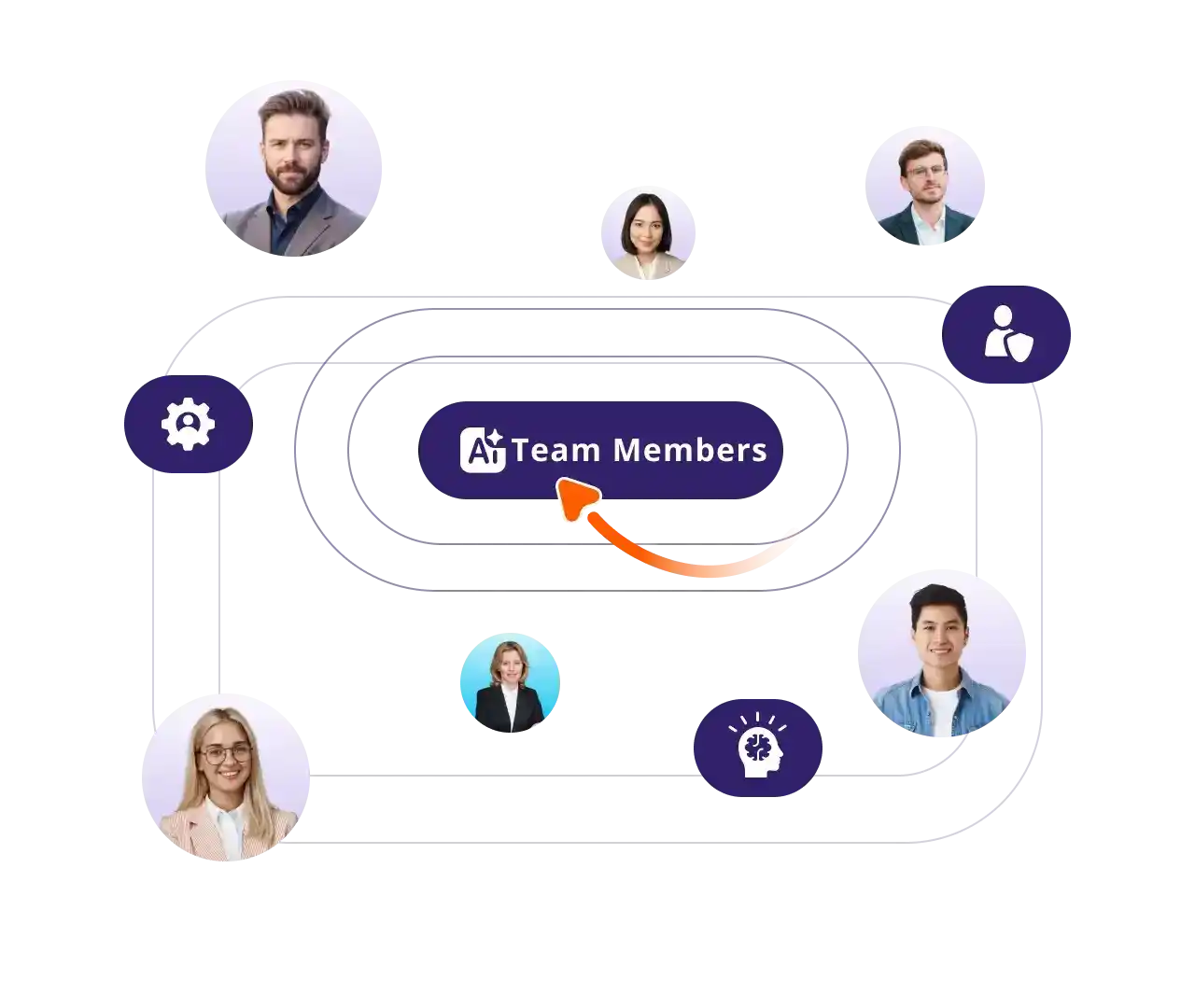
AI Fundamentals For Your Team

Build the mindset, culture, and capabilities to start unlocking real AI impact, fast!
📚 Immersive Learning
Live expert sessions + self-paced modules for procurement teams.

📅 21-Day Program
Flexible, high-impact AI training tailored to your goals.

🌍 Real Examples
Apply AI to sourcing, contracts, and supplier management.

📈 AI Progress Tracker
Benchmark and measure ROI with clear and accurate metrics.

🤝 Hands-On Projects
Encourage practical use and secure ongoing advancement.

💬 Expert Access
Monthly Q&A with AI and procurement experts to solve your problems.

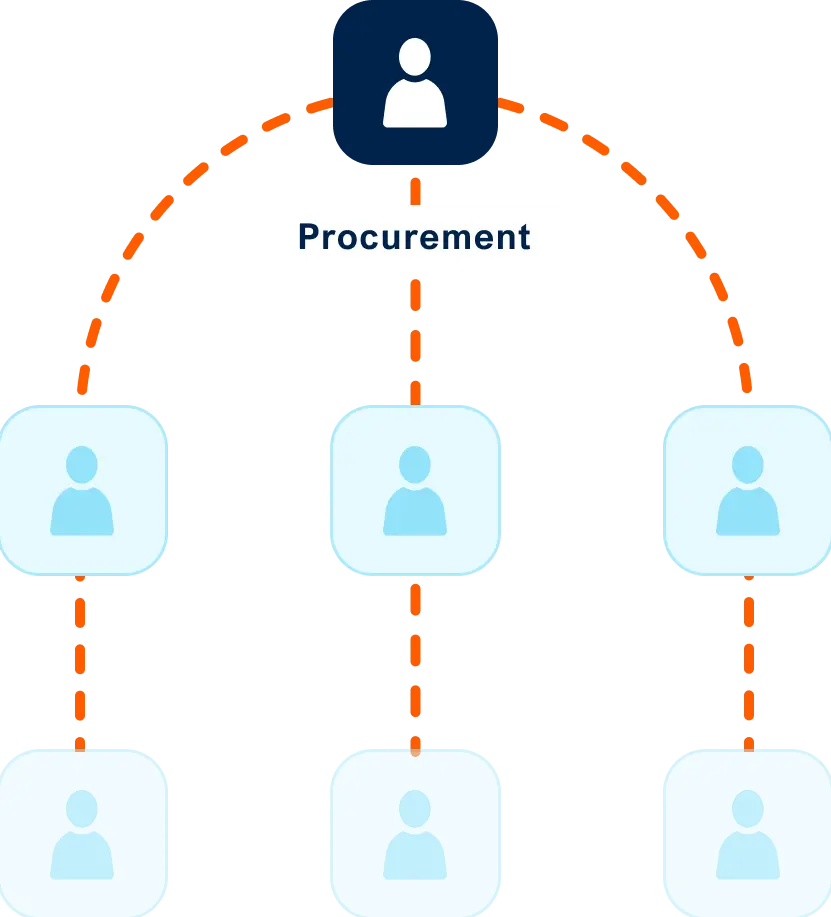
AI Fundamentals For Procurement Leaders

Align your team on an AI vision and build a strategic roadmap for procurement transformation.
📅 21-Day Program
Focused, high-impact training to accelerate AI usage in your team.

🌍 Real Examples
Learn from real examples of procurement leaders leading the AI-way

💬 Expert Access
Monthly Q&A with AI and procurement experts to solve your problems.

🎯 Leaders Aligned
Unify your team with a shared understanding of AI’s role in procurement.

📚 Immersive Learning
Live expert sessions + self-paced modules for procurement leaders.

📍 Actionable Roadmap
Leave with a clear plan to implement AI in your procurement process

Succeeding in AI through Talent

Mastering AI isn’t about using the newest tool

Winning with AI requires investing in people, not just tools.

We see many people caring too much about using the newest tool, but they are utilizing only 10% of what is possible.

Using the newest tools is great, but actually knowing how to use them is key.

Leading procurement teams adopt a structured approach to change, integrating talent and technology to transform their function into an AI-driven powerhouse.
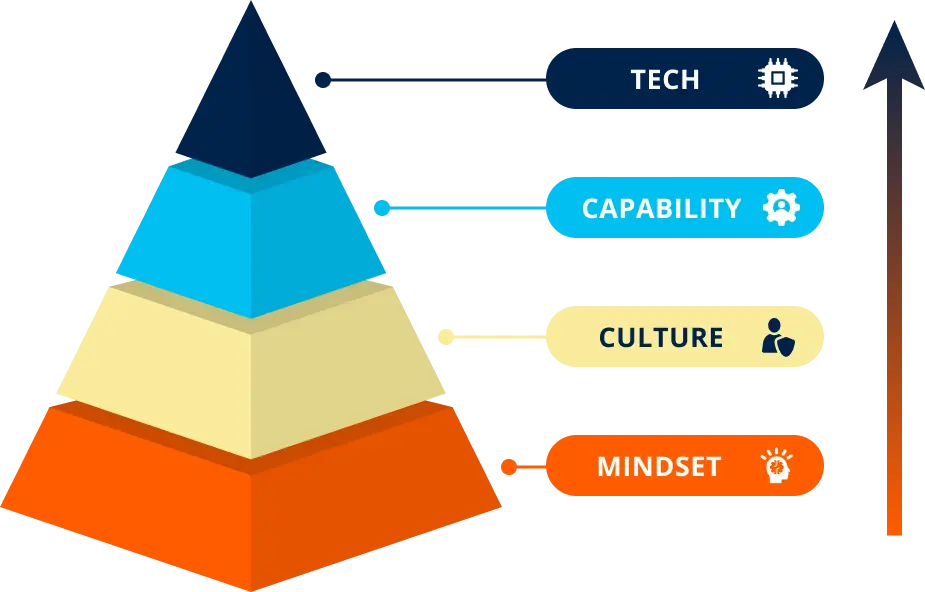
Program Overview For Your Team

Program Overview For Your Team

Stage 1
Module 1: 10 Things To Know Before Using AI
Team Kickoff
LIVE
Stage 2
Module 2: How AI Works & Why It Matters
Module 3: Prompt Engineering Essentials
Live Q&A
LIVE
Stage 3
Module 4: Applying AI in Procurement
Module 5: Streamlining Procurement Ops
Stage 4
Module 6: Future of AI in Procurement
Procurement Automation With AI Agents
Live Q&A
LIVE
AI Assessment (optional)
Ongoing
Self-paced (mini) Courses
Downloadable Templates
Monthly Expert Q&A
Program Overview

Program Overview for Procurement Leaders

Stage 1
Module 1: Your Role in AI Adoption—Where to Start
Leadership Kickoff
LIVE
Stage 2
Module 2: Creating an AI Policy—Rules for Safe & Effective Use
Module 3: Implementing AI—How to Enable Your Team
Live Q&A
LIVE
Stage 3
Module 4: AI Tools & Building Your Own Solutions
Module 5: Risks & Common Pitfalls (and How to Avoid Them)
Stage 4
Module 6: AI Roadmap—Long-Term Strategy for Procurement Teams
AI Agents for Leaders
Live Q&A
LIVE
AI Assessment (optional)
Ongoing
Self-paced (mini) Courses
Downloadable Templates
Monthly Expert Q&A

Meet your instructors

Marijn Overvest Procurement Tactics

Marijn Overvest

Procurement Thought Leader & AI Expert

Marijn Overvest Procurement Tactics

Ralph De Groot

Senior Learning Consultant & AI Expert

SUPPORT

FAQs

Have more questions? Get in touch with one of our sales consultants. Book a demo for further questions.

How do I enroll my team?

Schedule a demo call with our team. You can book a consultation directly on their calendar or reach out to us at team@procurementtactics.com. We’ll discuss timelines and get your team on board!

How much time does this require?

The leadership program can be finished within 5-6 hours.

The program for your team can also be finished within 5-6 hours.

If you decide to also participate in the optional modules that cover AI agent building, this will take another 5-6 hours.

Need help choosing the right pace? Discuss your team’s goals and timeline with one of our Procurement Learning Specialists in a free discovery call.

Is there a fixed schedule?

No. Your dedicated Procurement Learning Consultant will work with you during onboarding to:

  • Agree on a tailored timeline
  • Lock in dates for the kick-off, live sessions, and graduation/demo day
  • Define progress checkpoints to keep learners on track

Before each live session, participants should complete a set portion of the self-paced modules, ensuring productive, focused discussions.

This structured yet flexible approach keeps teams aligned while accommodating procurement professionals’ busy schedules.

Is there a live learning component?

Yes!

This program comes with a kickoff and a 2 live Q&A sessions to solve your AI problems in procurement.

What type of support can we expect?

During the pre-enrollment process, our procurement specialists will guide your decision-making and address all your questions. You can reach them by email or schedule a quick consultation call whenever needed.

Once enrolled, you’ll be assigned a dedicated Procurement Learning Consultant who will:

  • Serve as your single point of contact throughout the program

  • Coordinate all logistics including kickoff, scheduling, and live sessions

  • Onboard your procurement team and handle any program-related needs

  • Work closely with you to maximize the impact on your team’s procurement capabilities

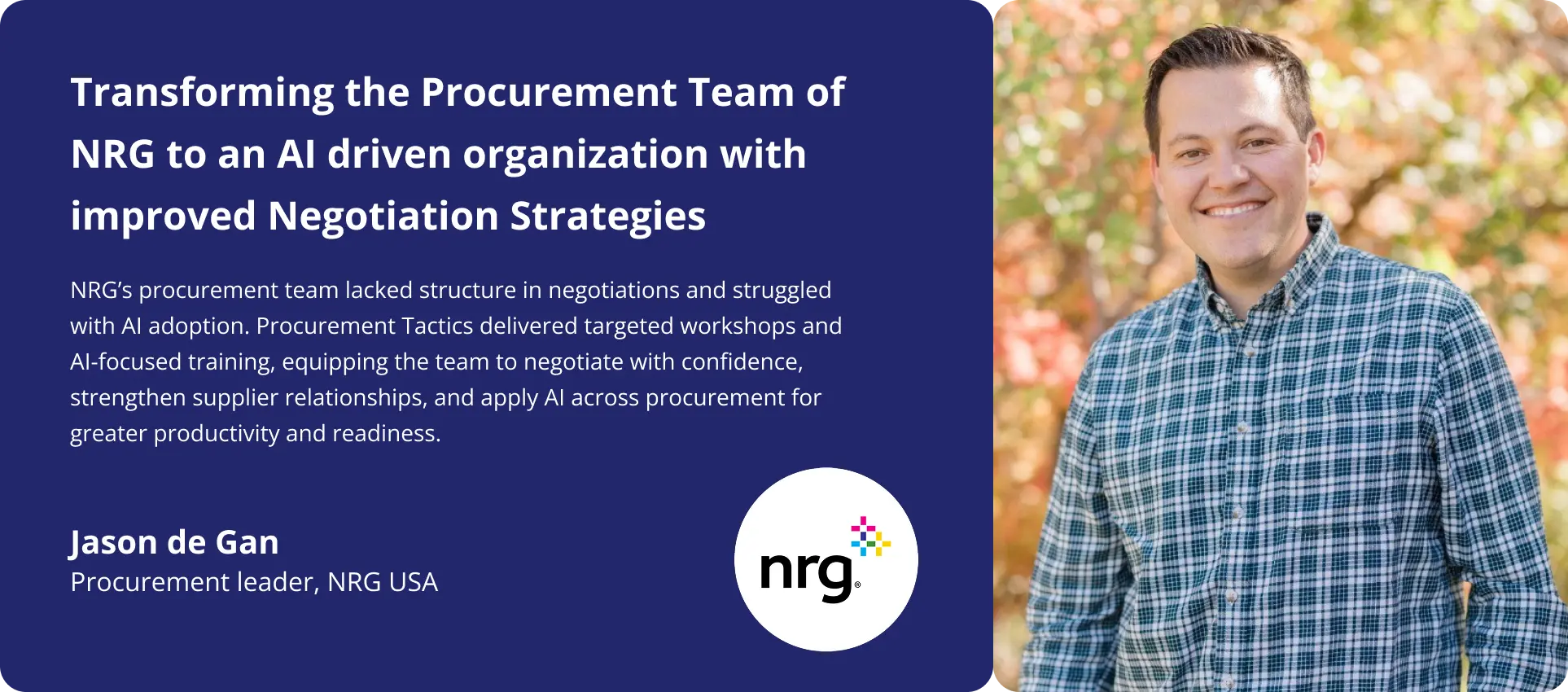
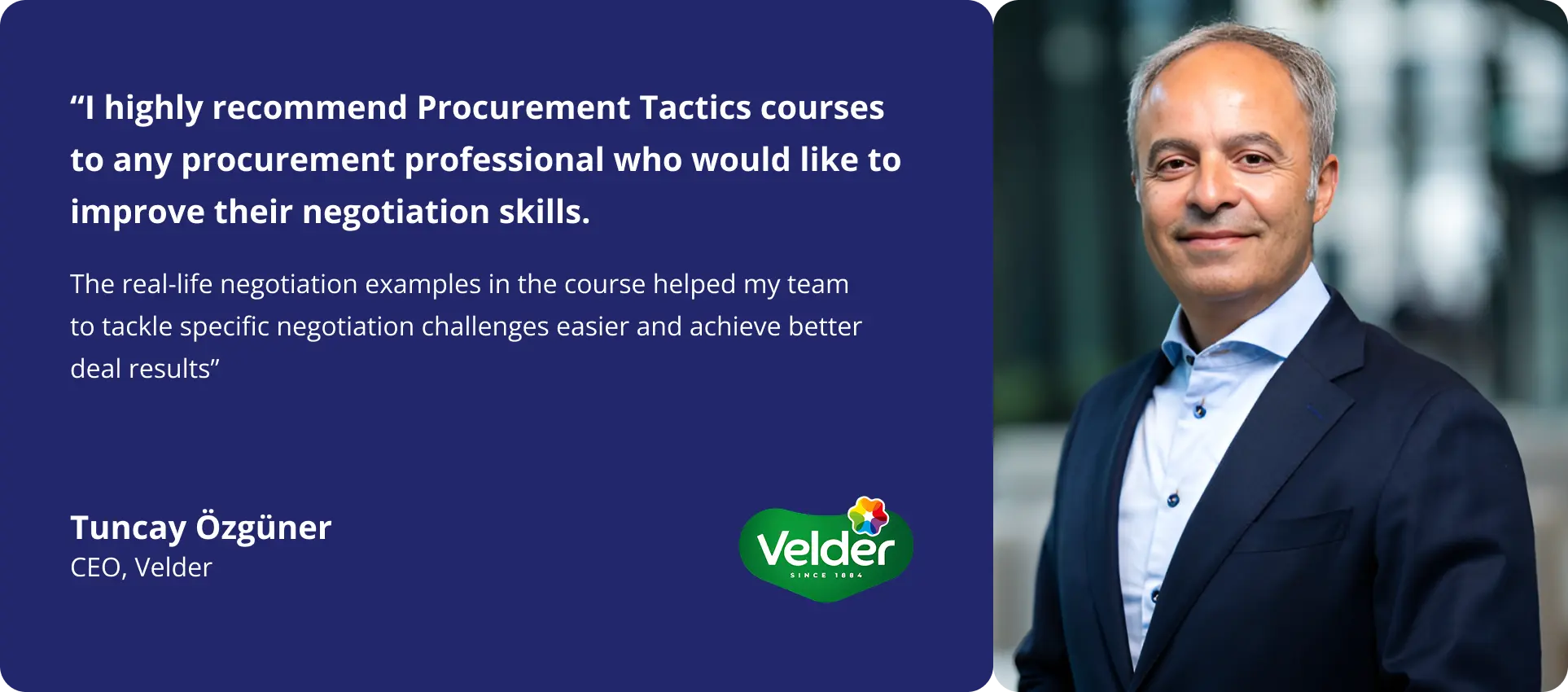
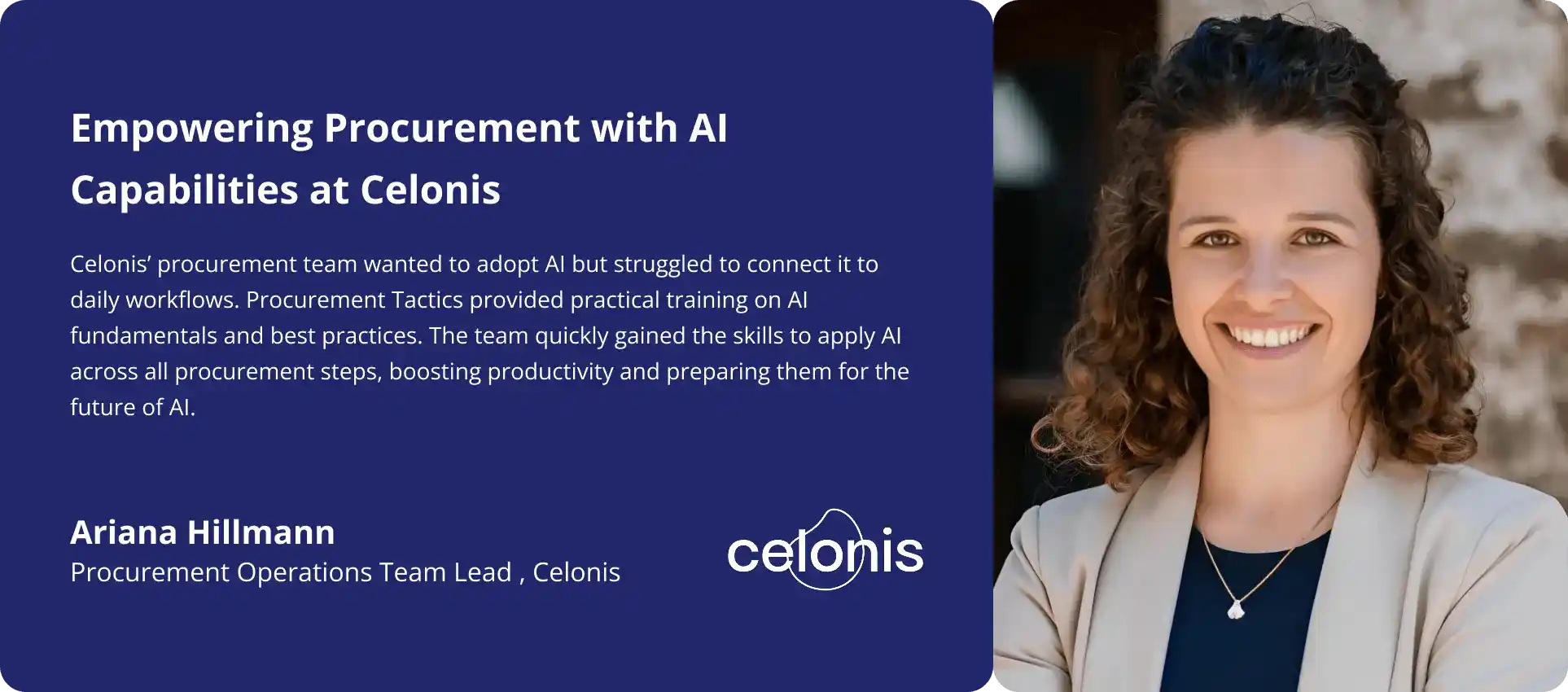
Client Success Stories
Slide 1
Slide 2
Slide 3

Program Overview + Price Quote

Ready to upskill your procurement team with critical AI skills?

Request a price quote and the program overview using the form, or reach out to us directly if you’d like to discuss what’s right for your team.

Click here to grab a slot in my calendar. Talk soon!


Pim Herremans